How to fix the recording
Sometimes your microphone might not work correctly. This is a common problem, and you can fix it in a few simple steps.
Step 1: Allow microphone access
When you first click the record button, Chrome will ask for permission to use your microphone. Click “Allow”. If you clicked “Block” by mistake, follow the steps below.
Step 2: Choosing the right microphone
If you have more than one microphone (like a headset, USB mic, or laptop mic), Chrome might pick the wrong one. Here is how to fix it:
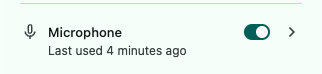
- ✓Look for a small triangle ▼ icon next to the microphone name in Chrome’s address bar. This is the microphone selection menu.
- ✓Click the triangle and choose the microphone you want to use. For example, if you are using a headset, pick your headset microphone.
- ✓If you are not sure which one to pick, try each one. Say a sentence and see which one works best.
Step 3: Check Chrome's microphone settings
Look at the address bar at the top of Chrome. You will see a small microphone icon (🔒 or 🎤). Click on it to open the site settings.
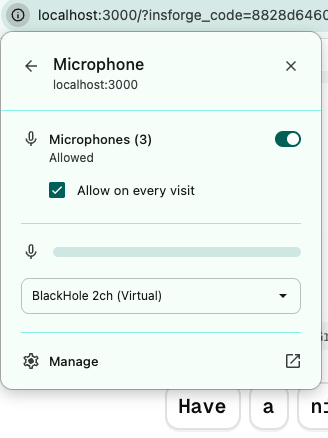
If the microphone is blocked, change it to "Allow". Then reload the page (refresh) and try again.
Done!
After you choose the right microphone, go back and try recording again. It should work now!